

What this guide helps you do
Prepare a workspace export, verify the generated files, and keep a recoverable copy outside the application.
Before you start
- Use an owner account or an account allowed to export workspace data.
- Choose a period when the export will not disrupt urgent work.
- Have an approved secure location ready for the downloaded files.
Step by step
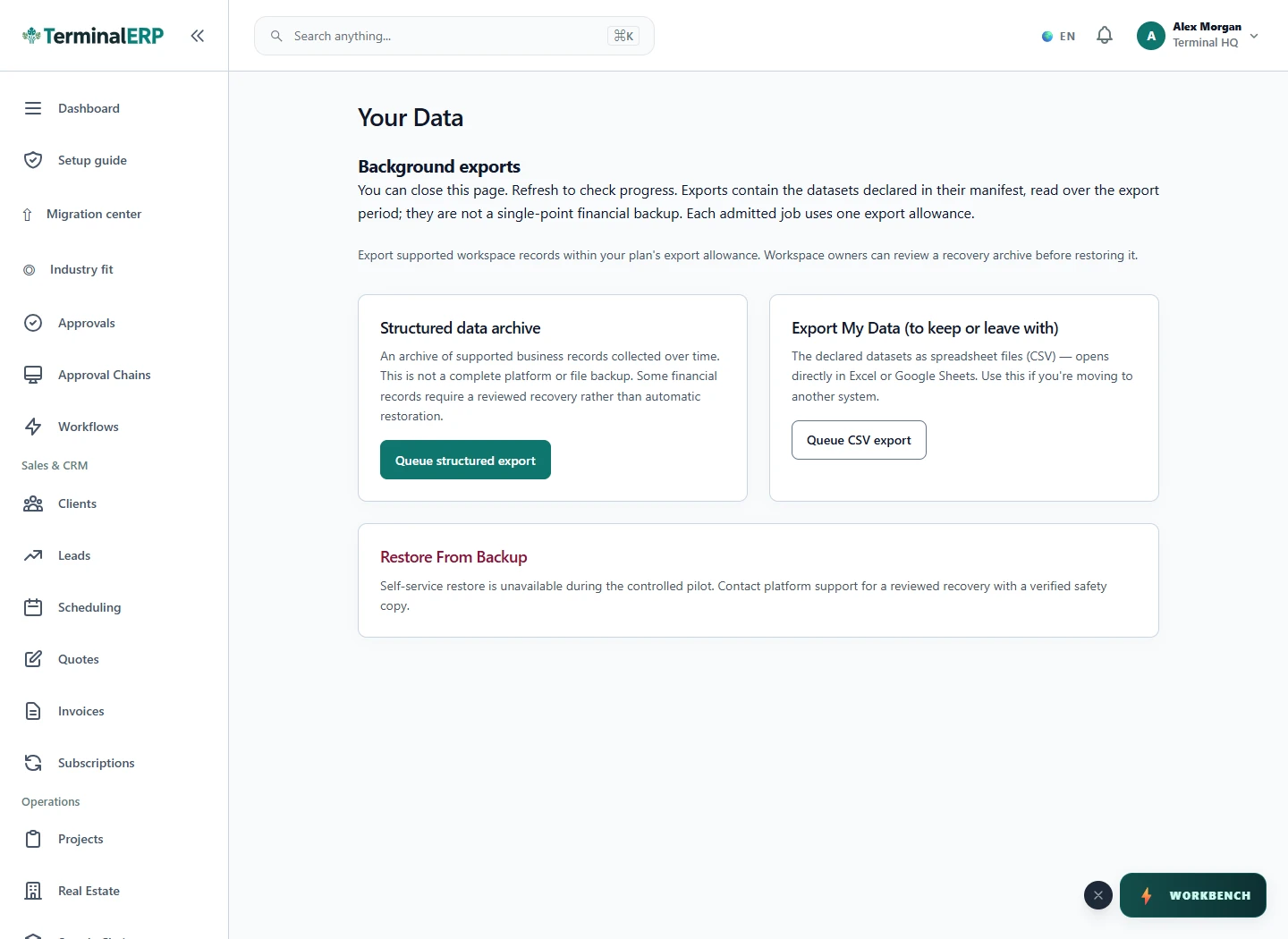
- Open Your Data from workspace settings.
- Choose the available export or backup action and start the job once.
- Wait for the job status to finish; do not repeatedly submit the same request.
- Download every generated part and keep its manifest or checksum when supplied.
- Open a small sample from each dataset and confirm that expected records and dates are present.
Find the workflow on screen
Check the result
- The export job shows completed rather than queued or failed.
- Files open successfully and belong to the intended workspace.
- The secure copy has an owner, date, and retention decision.
If something does not look right
- Stop before confirming, posting, paying, deleting, or retrying the same submission.
- Check the workspace, record identifier, date range, status, permissions, and source evidence.
- Refresh once and search for the record before creating a replacement, so a slow response does not produce a duplicate.
Common problems and what to check
- The export is queued: inspect job status before submitting another request. Retain the job reference if it fails.
- A part will not open: verify that every part and manifest was downloaded. Keep the original export unchanged while investigating.
When to contact support
If the source evidence and permissions are correct but the result is still wrong, send the page address, record number, exact message, time of the attempt, expected result, and what you already checked. Never include passwords, API keys, payment-card details, or private provider secrets.