

What this guide helps you do
Keep employee details, status, compensation records, and expiring evidence reviewable by authorised staff.
Before you start
- Confirm who may view employee and payroll data.
- Collect only the documents required for the operational purpose.
- Know the document type, number, issue date, and expiry date.
Step by step
- Open Employees and select the team member.
- Review designation, department, joining date, and active status.
- Add document metadata and an expiry date; attach the approved evidence when required.
- Use the roster and expiry indicators to plan renewals.
- Deactivate a departing employee through the supported workflow instead of deleting their history.
Find the workflow on screen
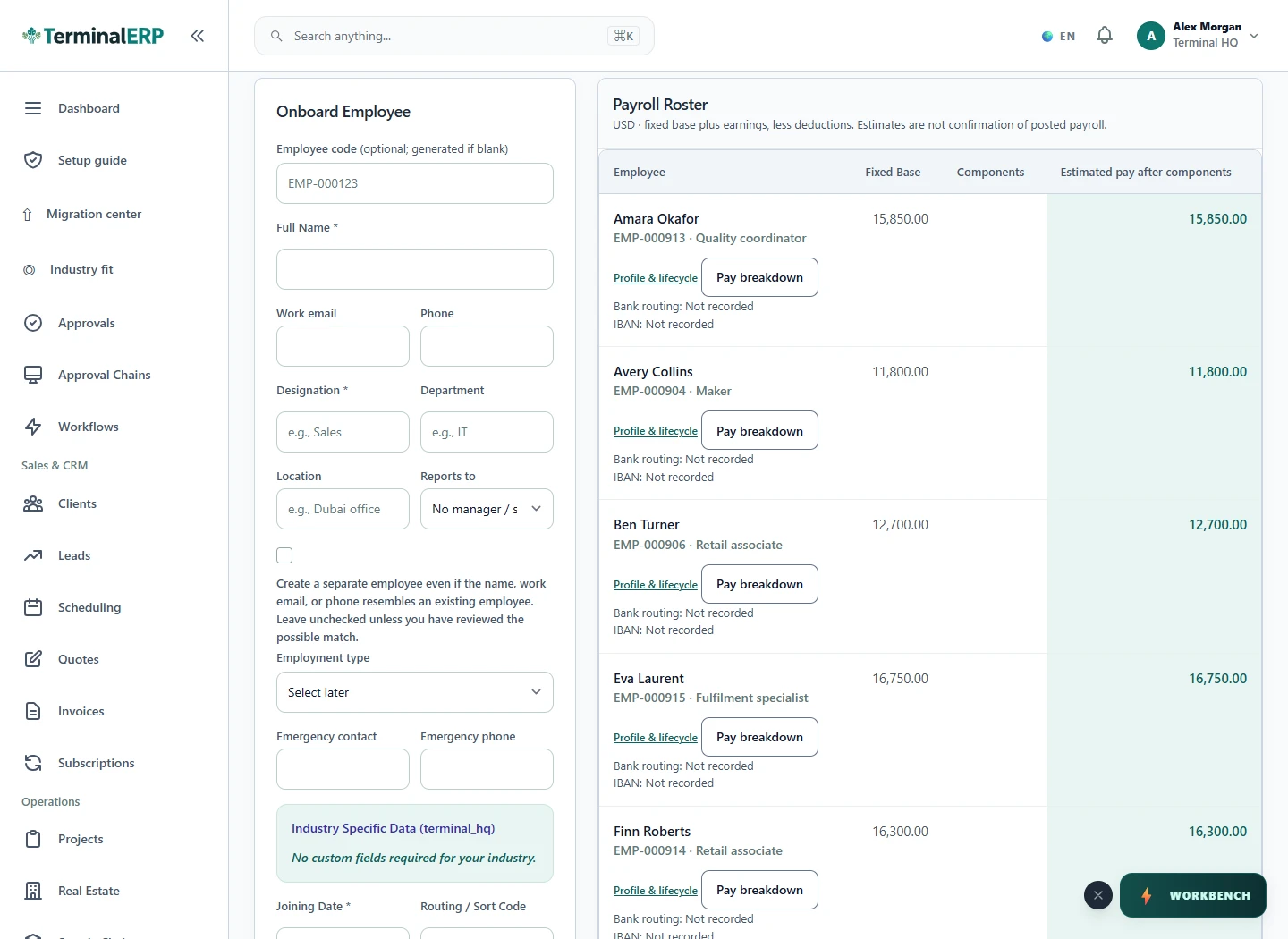
Check the result
- The record belongs to the correct person.
- Sensitive data is visible only to authorised roles.
- Upcoming expiries have a clear responsible owner.
If something does not look right
- Stop before confirming, posting, paying, deleting, or retrying the same submission.
- Check the workspace, record identifier, date range, status, permissions, and source evidence.
- Refresh once and search for the record before creating a replacement, so a slow response does not produce a duplicate.
Common problems and what to check
- A document is not flagged: verify its expiry date and the current filter; a document without an expiry date cannot have an upcoming-expiry warning.
- A person cannot access the ERP: an employee record and a workspace login are different records. Review the user account and role separately.
When to contact support
If the source evidence and permissions are correct but the result is still wrong, send the page address, record number, exact message, time of the attempt, expected result, and what you already checked. Never include passwords, API keys, payment-card details, or private provider secrets.