What this guide helps you do
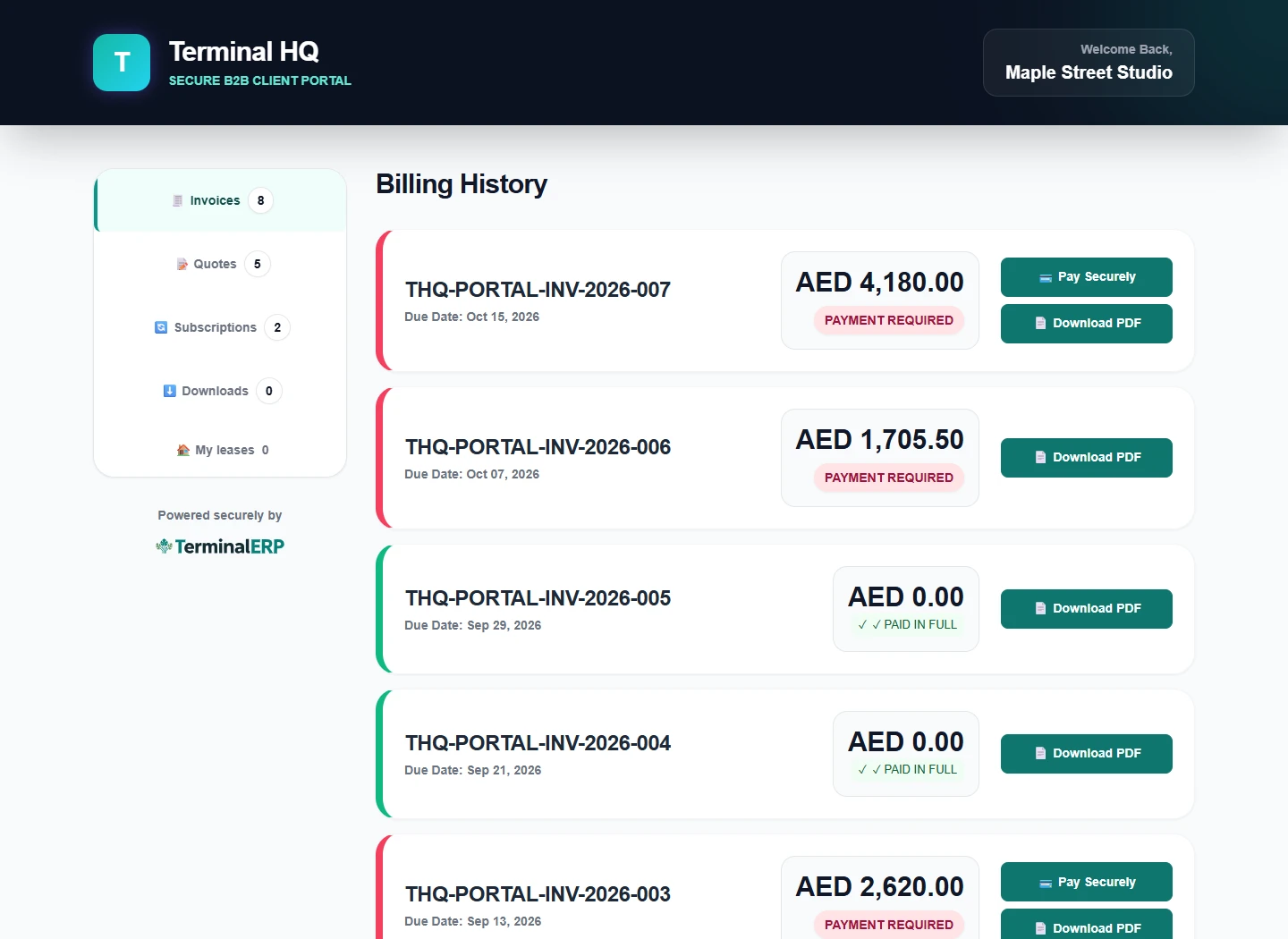
Give a customer a secure link to review invoices, quotations, subscriptions, downloads, and leases without a workspace login.
Before you start
- Confirm the customer record and email address.
- Review which documents are visible before sharing access.
- Use a secure channel controlled by the intended customer.
Step by step
- Open the customer record and create or refresh portal access.
- Copy the customer-specific portal link and send it through the agreed channel.
- Ask the customer to review balances, download documents, and use available payment actions.
- Revoke access from the customer record if the link is shared with the wrong person.
- Issue a new link rather than reusing a revoked capability.
Find the workflow on screen
Check the result
- The portal shows only records for that customer.
- Expired or revoked links no longer open.
- The workspace record reflects payments and decisions made through supported portal actions.
If something does not look right
- Stop before confirming, posting, paying, deleting, or retrying the same submission.
- Check the workspace, record identifier, date range, status, permissions, and source evidence.
- Refresh once and search for the record before creating a replacement, so a slow response does not produce a duplicate.
Common problems and what to check
- The link is rejected: check whether it expired or was revoked, then issue fresh access from the correct customer record.
- A document is missing: confirm its customer, supported status and visibility. Do not share another customer’s portal link as a workaround.
When to contact support
If the source evidence and permissions are correct but the result is still wrong, send the page address, record number, exact message, time of the attempt, expected result, and what you already checked. Never include passwords, API keys, payment-card details, or private provider secrets.