
Before you start
Note the module name, your workspace and the task you were trying to perform. Do not include your password in an access request.
Follow these steps
- Check that you signed into the intended workspace.
- Ask the owner whether the module is included and enabled.
- Ask them to review your role and specific permission for the action.
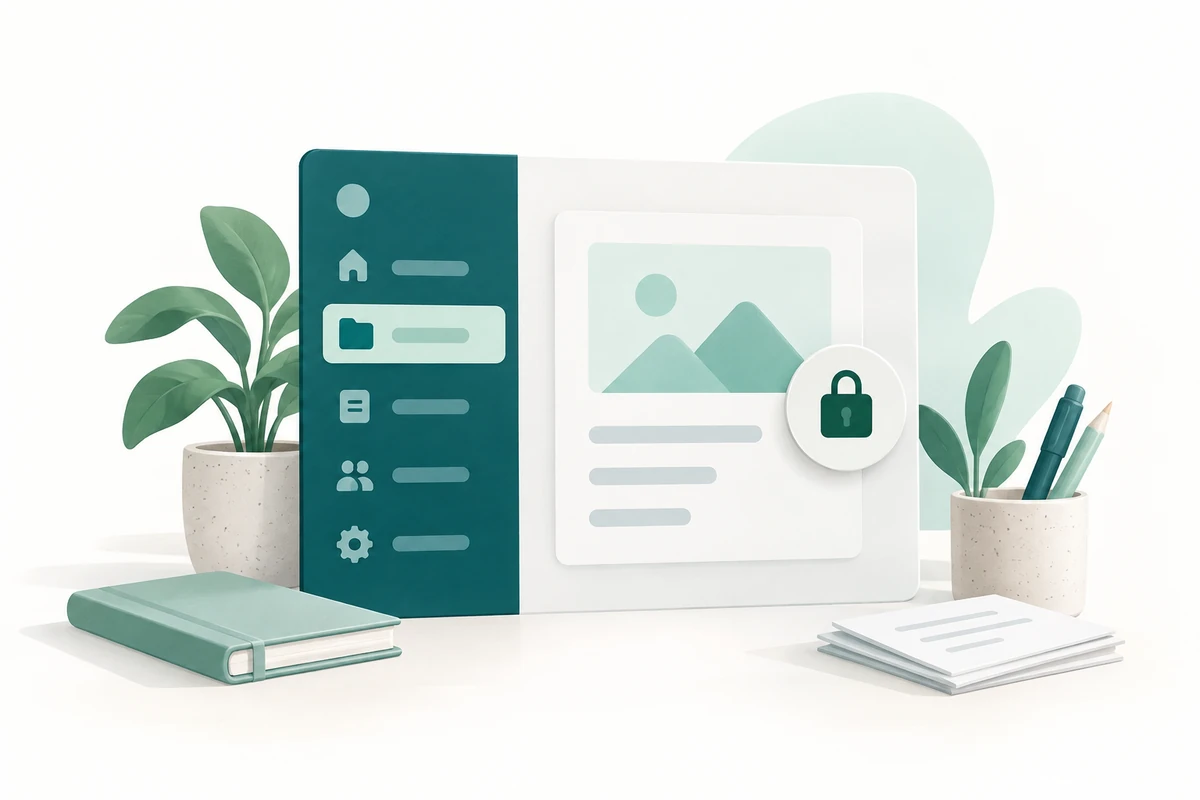
- Compare the page’s lock or validation message with the intended task.
- Contact support with the exact message if the configuration appears correct.
Check the result
You identify which access or availability condition needs review. A plan change should only be considered after checking the actual requirement.
If you get stuck
Refreshing will not normally grant a missing permission. Do not guess private URLs or use another person’s account to bypass a restriction.
One thing to remember
A feature described on the public website is not automatically included in every plan or role. Keep team access proportionate to the work each person performs.
Keep going
Still need a hand?
Tell us what you tried, what you expected and what happened. Keep passwords, API keys and private customer information out of your message.
Open a support ticket. Visitors without a workspace can contact us.
Still stuck?
Before contacting support:
- Confirm the workspace, record number, date range and status.
- Check your role permissions and the source document.
- Refresh once and search for the record before repeating a submission.
- Check the relevant guide for the next action; do not force a match, posting or approval.
If you still need help, include the page address, exact message, time, expected result and checks already completed. Never send passwords, API keys, payment-card details or provider secrets.